Unpack a nest
Move the contents of a nested sequence back into the main edit in a focused workflow.
 Pr
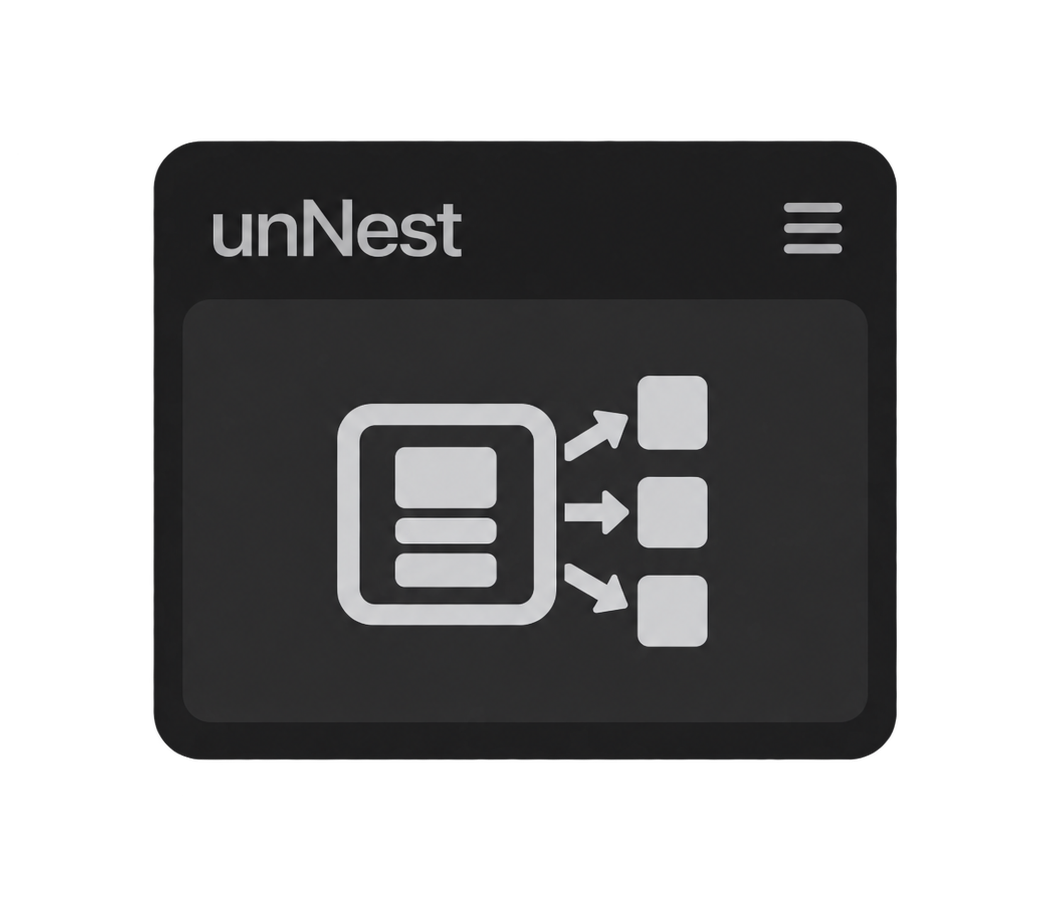
PrBring clips out of nested sequences and back into the timeline without rebuilding the edit by hand.
Built for Adobe Premiere Pro · Mac & WindowsA short look at how unNest brings nested clips back into your active timeline.
Move the contents of a nested sequence back into the main edit in a focused workflow.
Avoid opening nests and manually copying their contents back into place.
Keep working in the sequence you are already editing, with the source clips in view.
Select one or several nested-sequence clips and run unNest. It restores the nested sequence's video and audio clips with their original timing and relative track layout. Regular selected clips are ignored.
unNest restores the complete source sequence, including clips outside the trimmed nest's visible range, while keeping the source in-point aligned to the nest's position in the active timeline.
It stops before changing the timeline if expansion would overwrite unselected content, begin before 00:00 or overlap another selected expansion. Speed-changed, reversed or caption-containing nests are also left untouched.
No. Premiere Pro's public UXP API does not expose transitions reliably enough to reproduce them. Video and audio clips are restored, while transitions are omitted.
No. It works locally with no account or telemetry. unNest requires Adobe Premiere Pro 25.6 or later on macOS or Windows, and the complete operation can be reverted with one Undo.